
FREE REVIEW LINK & CARD MAKER
Google Review Link &
QR Code Generator
Create a direct Google review link, a scannable QR code and a branded review card. Give customers a simple way to share their experience after the job.
Example Google review card
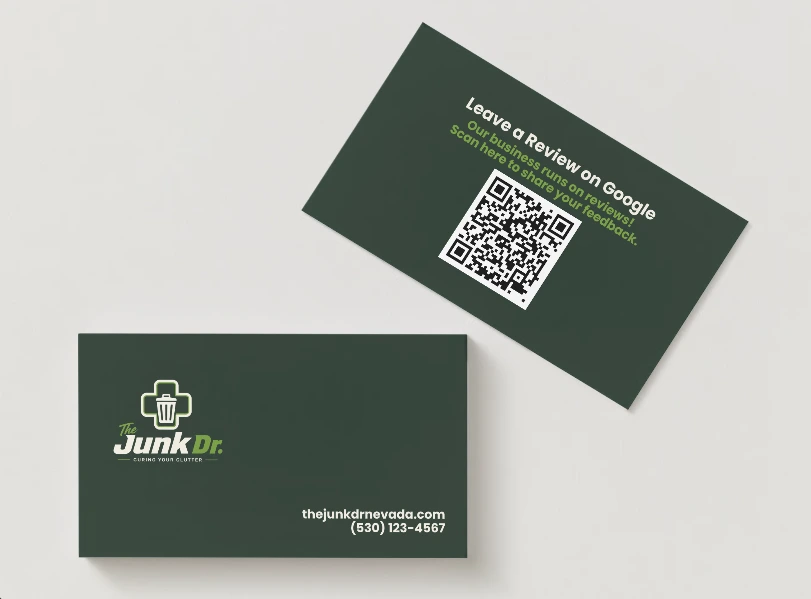
Make leaving a Google review easier.
A customer should not have to search for your business and work out which listing is yours. A direct review link sends them to the review destination for your Google Business Profile. A QR code gives them the same shortcut from a physical card.
Use the link in a thank-you message or on an invoice. Add the QR code to a business card, counter sign or job-completion handout. It works for contractors, home service businesses, shops and other local businesses.
How to create your review link and card
- Find the right business.Search your business name and city. Check the profile and location before choosing it.
- Get your Google review link and QR code.Copy the direct link or download the QR image. Test it with your phone before sharing.
- Make a branded review card.Upload your logo, add your contact details and preview the front and back. Download the PNG files for printing.
A review link, QR image and printable card.
- Direct review link
- A shortcut to the selected business’s Google review destination for messages and digital materials.
- Standalone QR code
- A downloadable PNG for cards, flyers, receipts and signs.
- Front-and-back card design
- Your logo and contact details on a business card with a review request and QR code.
- Standard business card size
- A 3.5 × 2 inch layout, with 1050 × 600 pixels corresponding to 300 pixels per inch.
Before ordering cards, check the printer’s bleed, trim and file requirements. Print a sample and scan the QR code at its final size.
Ask for honest feedback after the job.
Hand a card to customers after completing a service, include it with a receipt or display it at your counter. Keep the request simple: “Would you share your experience on Google?”
The customer chooses the rating. A review link does not guarantee a review, a five-star rating or a higher search position. Google recommends asking for genuine feedback and does not allow incentives in exchange for reviews. See Google’s review-request guidance.
For ongoing help collecting customer feedback, explore Oakwood’s review request service. Planning your advertising too? Try the marketing budget calculator.
Google review link and QR code questions
How do I create a Google review link?
Search for your business by name and city, then select the correct Google Business Profile. Copy the generated review link and test it before sharing it with customers. If your business has several locations, choose the specific branch you want reviewed.
How do I turn my Google review link into a QR code?
Select your business in the generator to create a QR code for its review link. Download the QR image and scan it with your phone to check the destination before adding it to printed materials.
What size are the Google review cards?
The card design uses a standard 3.5 × 2 inch business card format. A 1050 × 600 pixel image corresponds to that size at 300 pixels per inch. Confirm your printer’s bleed, trim and file requirements before ordering.
Can I add my business logo, phone number and website?
Yes. Upload your logo when creating a review card and add the contact details you want on the design. Preview the front and back before downloading the PNG files.
Does the QR code guarantee five-star reviews?
No. The QR code takes customers to the review destination; it does not choose a rating or write a review for them. Ask for honest feedback about their experience.
Can I make a different QR code for each location?
Yes. Search for each business location separately and generate its own review link, QR code and cards. Test each code to confirm it points to the intended location.
Does a Google review QR code expire?
A static QR image has no built-in expiry date. It continues to point to the URL encoded in it, but whether that destination works depends on Google and the Business Profile. Retest your code after profile changes and before a new print run.
Want your review requests handled?
Talk with Oakwood about making customer feedback part of your routine.